
Setlog group visibility fix
Setlog Group Logs Not Showing: What to Check
A Setlog group can look joined and still fail to show the people or posts you expect. You may receive a notification that a friend joined or posted, yet the group stays empty. In another version of the problem, one person can see the membership while the other person cannot see any members or group logs.
This guide organizes three anonymized support reports about Setlog group logs not showing across iPhone and Android. It separates a missing group, missing members, missing posts, and repeated room removal so you can preserve the useful evidence before reinstalling, changing accounts, or making another group.
Start here
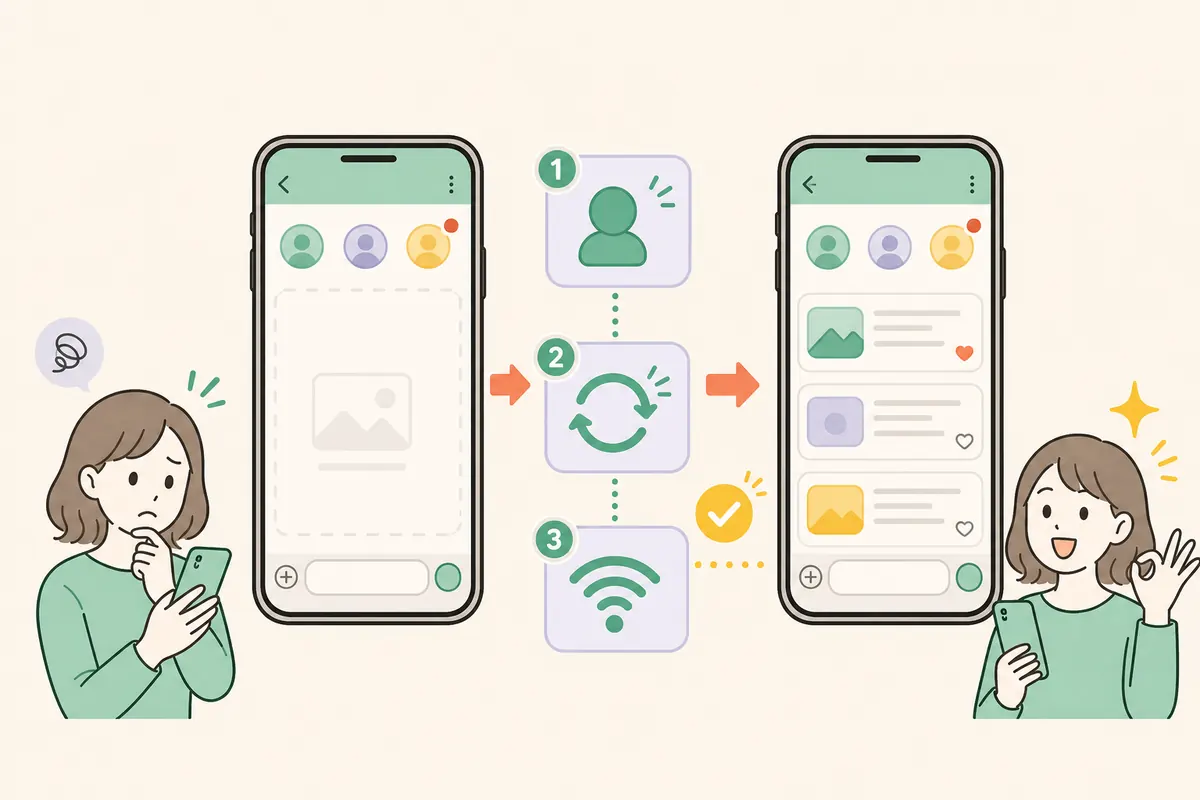
When Setlog group logs are not showing, first confirm that every person is looking at the same group name and current join code, then compare what each account can see: membership, a join notification, a post notification, and the actual group log. Keep the original account signed in, update Setlog, restart it once, and compare Wi-Fi with mobile data. Do not keep creating replacement groups, clearing app data, reinstalling, or switching login methods. If one side sees the group and the other does not, record that exact difference and send it through Help or official Setlog support.
Separate the symptom
Identify What Is Missing From the Setlog Group
Setlog group logs not showing can describe several different results. The entire group may disappear from the home screen. The group may open but show no other members. A notification may say that someone joined or posted while the group itself stays empty. You may be able to post a log but your friend cannot see it, or your friend may see you as a member while you cannot see them. Start by choosing the closest result instead of treating all of them as a failed join code.
This distinction matters because a recognized join action, a membership record, a notification, and visible group content are separate checkpoints. If a join notification arrives, the code reached some part of the group flow. If a post notification arrives but the log is missing, the post event reached the account while the group screen did not display the content. Those clues are more useful than repeatedly leaving and rejoining.
The whole group disappeared
A group that used to appear is no longer in the list. Check the current account before making a replacement group.
Members are missing
The group opens, but you cannot see the friends who joined. Ask one member to compare the group name and visible member count.
Notifications arrive, posts do not
A join or post notification appears, but opening the group shows no new member or group log.
Only one side can see the group
The owner or one member sees the other account, while the other person sees an empty or missing group.
Protect the account
Preserve the Original Setlog Group and Account State
Before troubleshooting Setlog group logs not showing, keep the account and group that still contain the best evidence. Do not log out simply to test another email, Apple account, Google account, or passkey. A different login method can open a different or blank profile, which makes the original group look lost even when the issue is account selection. Write down the display name, group name, whether other groups are visible, and the last time this group worked.
Do not delete the group or create several groups with the same name. A new join code belongs to the new group, so members can easily compare different rooms while believing they are testing the same one. If someone still sees the original group, keep it in place. Screenshots used for support should hide faces, names, messages, and the private join code; the visible member count and blank content area are enough.
- Keep the original Setlog account signed in
- Do not clear app data or storage
- Do not delete and recreate the group
- Do not publish the private join code in a screenshot
- Record the group name and visible member count
- Check whether other groups still appear on the same account
Compare both sides
Compare the Same Setlog Group on Two Accounts
The fastest useful check is a side-by-side comparison with one trusted group member. Each person should open Setlog independently and report four results: whether the group is listed, whether the other member appears, whether a recent join or post notification arrived, and whether the actual group log is visible. Do not exchange passwords, verification codes, or screenshots of private messages to perform this comparison.
Use the exact group name and, if safe, have the group owner verify that the current code belongs to that group without posting the code publicly. If both people see the group but neither sees posts, the symptom is different from one person seeing everything while the other sees nothing. If the owner sees your account in the member list but you see an empty room, write that sentence exactly in the support request.
Group list
Does the same named group appear for both accounts, only one account, or neither account?
Member list
Can each person see the other as a current member, or is membership visible from only one side?
Notification result
Did either person receive a join or post notification even though the content stayed missing?
Visible group log
Can either person open the latest log, and is the missing content limited to one account or one device?
Account and group
Confirm the Same Account and Current Group Code
Setlog group logs not showing may begin after reinstalling the app, trying another sign-in method, or making a new group because the old one looked missing. Check whether the current profile matches the account that originally joined the group. A familiar display name is not enough by itself; compare other groups, friends, and profile details you remember. If the rest of the account is also empty, resolve the login mismatch before changing the group.
A join code can also become a misleading clue when several replacement groups were created. Confirm that the owner is sharing the current code from the exact group being tested. Enter it once and note the result: group name appears, join completes, member notification arrives, or nothing changes. Do not repeat the same code entry many times, and do not place the code in Help text or a public page.
- The current profile matches the original Setlog account
- Other expected groups or friends are still visible
- The owner opened the exact group being tested
- The code came from that current group, not a replacement
- The code was entered once and the result was recorded
- No password, verification code, or private group code was shared
Safe refresh
Refresh Setlog Group Logs Without Clearing Data
Use the least destructive refresh steps first. Fully close Setlog, wait a few seconds, and open it once. Return to the group list before opening the affected room. Check the App Store or Google Play for a Setlog update, then restart the phone. These actions can refresh the app process without deleting the account state or local evidence needed to identify why Setlog group logs are not showing.
Next, test one stable Wi-Fi connection and one mobile-data connection if both are available. If the group appears on one connection but not the other, record that result rather than repeatedly switching. On Android, battery restrictions and background limits may delay updates, but do not change every setting at once. On iPhone, check whether Low Data Mode, a VPN, or a managed network is part of the test environment.
- Fully close and reopen Setlog once
- Open the group list before the affected group
- Check the official store for a Setlog update
- Restart the phone once
- Compare one Wi-Fi and one mobile-data result
- Change only one setting before testing again
Notification, no post
When a Setlog Post Notification Arrives but No Log Appears
A post notification without a visible group log is a strong diagnostic detail. It means the account received an event associated with the group, even though the group screen did not show the expected post. Open Setlog directly from the app icon as well as from the notification and compare the result. A stale notification destination can behave differently from opening the current group list first.
Confirm that the notification names the same group being tested, but do not include the friend's name or message in a public request. Ask the sender only whether the post still appears on their own device and whether another group member can see it. Do not ask them to repost the same private moment repeatedly. If their post is visible to others but not to you, state that the missing display is limited to your account or device.
Open from the app icon
Start at the group list instead of relying only on the notification destination.
Match the group
Confirm the notification belongs to the same group without sharing its private content or code.
Check the sender side
Ask whether the sender still sees the post and whether one other member can see it.
Avoid duplicate private posts
Do not ask friends to resend personal content repeatedly just to test visibility.
Repeated room removal
When Setlog Keeps Removing You From Rooms
If you repeatedly appear signed out of rooms, separate room membership from the main Setlog account login. Check whether the main profile remains signed in and whether only one room or every room disappears. Reusing the same code may temporarily restore an entry, but repeated removal suggests that simply joining again is not enough to explain or solve the state.
Record the sequence once: the room is visible, the app is closed, the room disappears, and entering the code restores or fails to restore it. Include whether the owner still sees your account as a member. Do not cycle through leaving, joining, reinstalling, and switching accounts in one test, because support cannot tell which action changed the membership.
One room or every room
Check whether removal is limited to a single group or affects all joined groups.
Main profile stays signed in
Confirm whether Setlog itself remains on the expected account while room membership disappears.
Owner membership view
Ask whether the owner still sees your account after the room disappears on your device.
One clean reproduction
Record one sequence without mixing reinstall, logout, new accounts, and repeated code attempts.
Send a useful report
Report Setlog Group Logs Not Showing With Useful Evidence
If the checks do not restore the group, use SetlogHub Help and choose Friends, groups, or codes. State whether the whole group is missing, members are missing, a notification arrives without the post, only one side can see content, or rooms repeatedly disappear. Add the device, OS, Setlog version, when it started, whether it followed an update or reinstall, and the safe checks already completed.
SetlogHub can organize the troubleshooting details, but only the app provider can inspect or change internal membership and saved group data. The support address shown on the official store listing is hi@setlog.kr. Do not send passwords, verification codes, passkeys, private group codes, private messages, faces, or other members' personal information. The account and screen differences are the evidence that matters.
State the exact symptom
Choose missing group, missing member, missing post, one-sided visibility, or repeated room removal.
Describe both sides
Explain what the owner sees and what the affected member sees without exposing names or messages.
Include the environment
Add device, OS, Setlog version, connection type, start time, and update or reinstall timing.
Remove private information
Leave out account secrets, group codes, message content, faces, school details, and exact locations.
FAQ
Common questions
Why can I join a Setlog group but not see anyone?
The join action, visible membership, notifications, and group posts may not update at the same stage. Compare the same group on the owner and member accounts, confirm the original account, then refresh the app without clearing data.
Why did my Setlog group disappear?
First check whether the current profile is the same account that originally joined or created the group. Do not create a replacement immediately. Check other groups, update Setlog, restart once, and record whether the owner still sees your membership.
Why do I receive a Setlog post notification but see no group log?
Open Setlog from the app icon and start from the group list, then compare whether the sender and one other member can see the post. Record the one-sided result instead of asking for repeated private test posts.
Should I reinstall Setlog when group logs are not showing?
Not as the first step. Keep the original account signed in, preserve the group state, update and restart the app, and test the connection before reinstalling or clearing data.
Can I keep reusing the group code until the members appear?
Enter the current code once and record what happens. Repeated joins can make membership harder to diagnose, especially when replacement groups or different accounts are involved.
What should I include in a Setlog group visibility report?
Include the exact missing item, what each side can see, device, OS, Setlog version, connection, start time, and safe checks. Do not include passwords, verification codes, private group codes, messages, faces, or personal details.
Where to go next
Send a group visibility report
Choose Friends, groups, or codes and describe the owner view, member view, device, version, and safe checks.
Open guideReview the Setlog use flow
Check basic setup, account state, first capture, and the point where group use begins.
Open guideFind or publish a Setlog group
Use group codes only when the goal is discovering or publishing a circle, not repairing an existing group.
Open guide