
Setlog camera troubleshooting
Setlog Camera Not Working: Find the Failed Step
A Setlog camera not working does not always mean the phone camera is broken. The Setlog preview may stay black, the shutter may do nothing, the view may freeze after switching lenses, or a clip may record only in landscape even though you held the phone upright. A different version of the problem happens after capture: the preview looked normal, but the photo or video never appears in the Log.
The useful first move is to identify the last step that still worked. This guide uses the same evidence-first approach we use when reading camera help requests: preserve the original Log, test one short disposable scene, and change only the setting connected to the failed step.
Start here
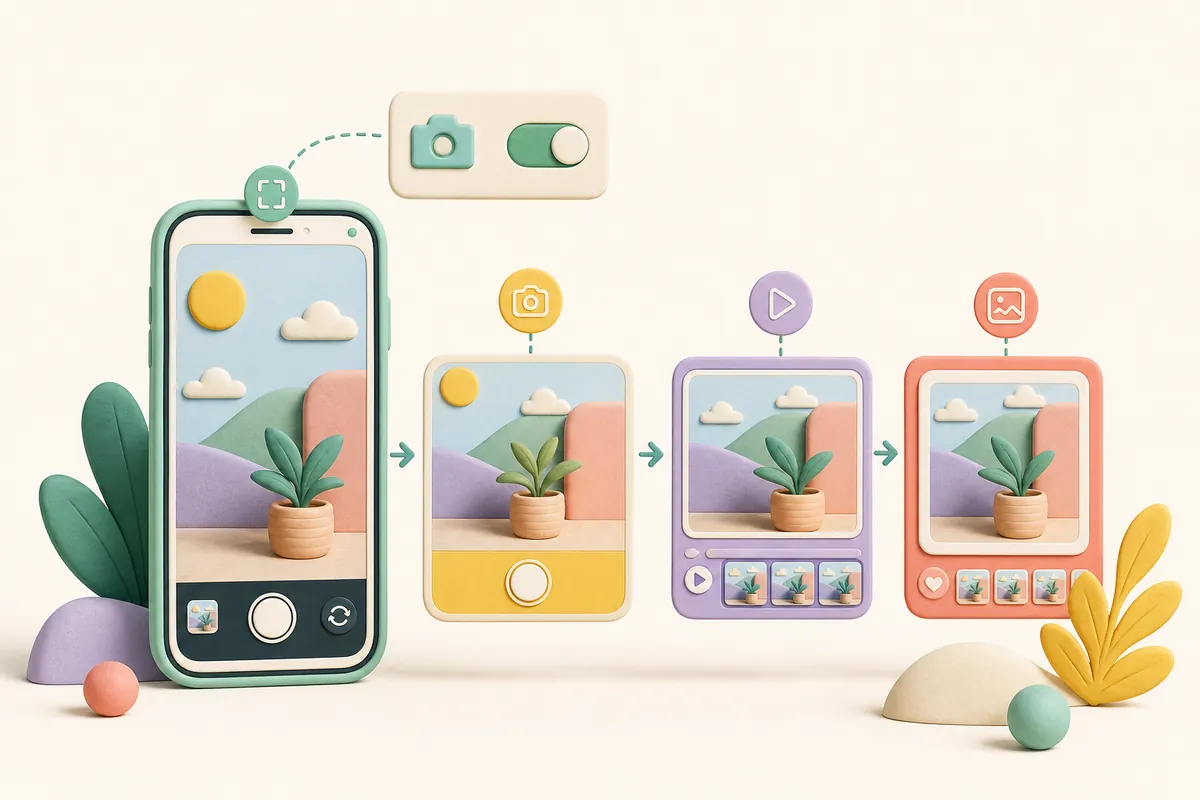
If the Setlog camera is not working, open the phone's regular Camera app first. If that works, return to Setlog and check camera permission, fully close the app, reopen it, and make one short test capture. Compare four points separately: live preview, shutter response, in-app playback, and the saved result. On iPhone, review Camera and Photos access; on Android, review Camera and Photos/Videos permission and whether another app is using the camera. Do not clear app data, reinstall, log out, or delete the affected Log before you know whether the account and original media are safely recoverable.
Name the symptom
Describe How the Setlog Camera Is Not Working
Start with what you can see, not a theory about the cause. A black Setlog camera preview means the camera screen opened but did not show an image. A frozen preview means an image appeared and then stopped moving. A shutter that does nothing is different again: the preview remains live, but tapping capture produces no visible result. If the capture completes and then disappears, the camera itself may have worked while the save or Log update failed.
Orientation deserves its own description. One support report said portrait capture remained landscape after an update. Record whether the live preview rotates, whether the in-app result is wrong, or whether only the exported gallery file is wrong. Those three results point to different parts of the flow.
Black preview
The Setlog camera opens, but the preview area stays dark while the normal Camera app still works.
Frozen or delayed view
A picture appears but stops moving, lags badly, or freezes after switching front and rear cameras.
Capture does nothing
The preview is live, but the shutter gives no result, progress state, or new Log item.
Wrong orientation or missing result
Capture finishes, but portrait becomes landscape or the new item never appears where you expected.
Protect your records
Keep Existing Setlog Logs and Originals Untouched
Do not test a Setlog camera not working with the only copy of an important moment. Keep original photos and videos in the phone gallery, and do not overwrite a previously exported file. If an affected Log still opens, leave it in place while you investigate. A short clip of a desk or wall is enough for the next test and avoids exposing faces, school details, messages, or precise location.
Avoid logging out, clearing Android app data, deleting Setlog, or switching login methods as the first repair. Those actions can remove useful local state or open a different account, making a camera problem look like missing content. Reinstallation also does not prove whether the failure came from permission, orientation, storage, or the current app version.
- Keep original gallery files and existing Logs
- Use a short disposable scene for testing
- Do not clear Setlog storage or app data
- Do not log out to test another sign-in method
- Hide faces, codes, messages, and location in screenshots
- Write down when the camera last worked normally
Phone camera test
Check Whether the Phone Camera Works Outside Setlog
Open the phone's built-in Camera app and test the same lens you tried in Setlog. Check front and rear cameras, then make one short video if the Setlog problem involves video. If the built-in app is also black, frozen, or unable to save, the problem is not limited to Setlog. Restart the phone and follow the device maker's camera guidance before changing Setlog settings.
If the regular Camera app works immediately but the Setlog camera does not, close the regular Camera app before returning to Setlog. Video calls, social apps, barcode scanners, and camera utilities can hold the camera briefly in the background. Close other camera-using apps, reopen Setlog once, and repeat the same short scene. Do not run several camera apps at the same time while comparing results.
Both apps fail
Treat it as a device camera or system problem first; changing only Setlog permission may not solve it.
Only Setlog fails
Continue with Setlog permission, app restart, version, and the exact failed step.
One lens fails
Record whether front, rear, or switching between them triggers the problem.
Video only fails
A working photo does not prove recording and saving video are working; test those separately.
Camera permission
Review Setlog Camera and Media Access
On iPhone, open Settings, find Setlog, and review Camera access. If the capture works but the result cannot be selected or saved, also review Photos access. On Android, open Settings, Apps, Setlog, Permissions, and check Camera plus Photos and videos or media access where offered. Menu names vary by phone and OS version, so look for the permission's purpose rather than one exact screenshot.
Change only the permission related to the symptom. A black preview points first to Camera access. A finished capture that never reaches the gallery or expected media picker may involve Photos or media access. Turning every permission off and on at once destroys the comparison. After one change, fully close Setlog, reopen it, and repeat the same short test.
- Camera permission is allowed for Setlog
- Photos or media access matches the save task
- The permission was changed only once before retesting
- Setlog was fully closed and reopened after the change
- The same lens and short scene were used again
- No unrelated notification or location setting was changed
Four checkpoints
Test the Setlog Camera Through Preview, Capture, Playback, and Saving
A reliable test follows the Setlog camera chain in order. First, does the live preview move? Second, does tapping capture start and finish? Third, can the result play inside Setlog? Fourth, does it appear in the intended Log or gallery after saving or export? Stop at the first failed checkpoint and write down what appeared on screen. A spinner, grey button, missing thumbnail, or orientation change is more useful than saying the whole camera failed.
For portrait problems, hold the phone upright before opening the camera, keep rotation lock state unchanged, and capture a five-second test. Compare the live view, Setlog playback, and gallery file. If only the exported file is landscape, report that exact difference. If the live preview itself is landscape, include rotation lock and device orientation in the evidence.
1. Preview
Is the image live, black, frozen, rotated, or limited to one lens?
2. Capture
Does the shutter respond, start recording, stop normally, and show progress?
3. In-app result
Can the new item be opened and played inside the same Setlog Log?
4. Saved result
Does the gallery or intended destination contain the file, and is its orientation correct?
Safe recovery
Restart Safely and Check the Current Setlog Version
Fully close Setlog, wait a few seconds, and open it once. If the Setlog camera is still not working, restart the phone and repeat the same short test. Then open the App Store or Google Play listing and check whether a Setlog update is waiting. Record the installed version and whether the symptom began immediately after an app or operating-system update.
Low phone storage can interrupt recording or saving even when the preview is normal. Check available device space without pressing Clear data or deleting the affected Log. If space is very low, remove only files you recognize and have backed up, then repeat the short test. A camera preview failure and a save failure should not be merged into one storage explanation.
- Setlog was fully closed and opened once
- The phone was restarted once
- The installed Setlog version was recorded
- The app and OS update dates were kept separate
- Available storage was checked without clearing app data
- The identical short test was repeated after each step
Useful evidence
Report the Setlog Camera Problem With a Reproducible Result
If the Setlog camera problem repeats, send the phone model, iOS or Android version, Setlog version, the date it began, and the exact route to the failed screen. A useful report might say: 'On iPhone, I open a group, tap Camera, see a live portrait preview, finish a five-second clip, and the saved result appears landscape.' Another might say: 'The normal Camera app works, but Setlog stays black on both front and rear lenses after camera permission is allowed.'
Attach only evidence that helps. Crop out names, faces, group codes, notifications, and private messages. If a file itself has the wrong orientation or playback problem, keep the original and test copy rather than repeatedly exporting the entire Log. SetlogHub can organize the symptom and troubleshooting record, but it cannot change the app or guarantee when a product defect will be fixed.
- Phone model and OS version
- Installed Setlog version
- Last normal date and first failure date
- Exact taps and first failed checkpoint
- Built-in Camera app comparison
- Privacy-safe screenshot or short test result
FAQ
Common questions
Why is my Setlog camera black?
First test the built-in Camera app. If it works, check Setlog Camera permission, close other camera-using apps, fully reopen Setlog, and test front and rear lenses separately.
Why does Setlog record landscape when I hold my phone upright?
Compare the live preview, Setlog playback, and saved gallery file while keeping rotation lock unchanged. Report which stage first changes the orientation, along with the device and Setlog version.
Should I reinstall when the Setlog camera is not working?
Not first. Preserve important Logs and account access, then test permission, app restart, phone restart, version, and a short disposable capture before considering reinstalling.
Why did the Setlog capture work but the video did not save?
The camera may have completed while the Log update, gallery access, storage, or export step failed. Check the in-app result and gallery result separately.
What should I include in a Setlog camera help request?
Include device, OS, Setlog version, start date, exact taps, built-in Camera comparison, and the first checkpoint that failed. Remove private information from screenshots.
Where to go next
Check a Setlog update
Use this when the camera problem began with a new app layout or version.
Open guideSave a Setlog video
Separate a working capture from a missing save or export result.
Open guideSend a help request
Share the reproducible camera result after protecting private details.
Open guide