
Notification Troubleshooting Guide
Setlog Notifications Not Showing? Fix for iPhone and Android
Before tapping around inside Setlog, check the device notification settings first. This guide separates four problems — not arriving at all, arriving silently, arriving late in a batch, and not showing on the lock screen — so you change only the setting that matches your symptom.
The key is testing one change at a time. Changing notification permission, battery settings, and Focus mode all at once makes it impossible to know which fix actually worked.
Direct Answer
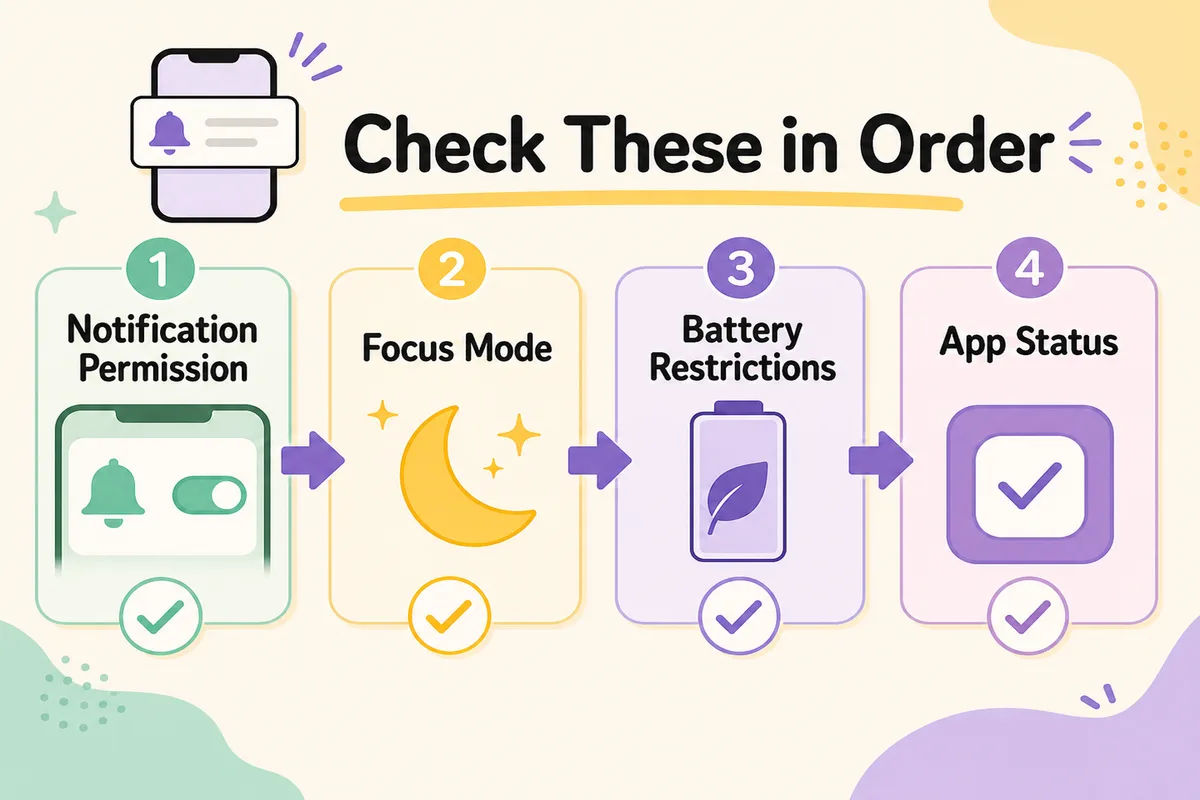
If Setlog notifications are not working, check device notification permission first. On iPhone, go to Settings > Notifications > Setlog. On Android, App Info > Notifications. Next, check Focus or Do Not Disturb modes, then battery optimization and background data on Android. Test one setting at a time with a single known event — do not reinstall Setlog as your first troubleshooting step.
On this page
Separate the symptoms before changing any settings
“Setlog notifications not working” can mean different things. Before changing settings, identify which symptom you have. A notification that exists but has no sound is a different problem from one that never arrives. A batch that appears only when you open the app is different from one missing on the lock screen.
No notifications at all
Nothing appears in Notification Center, on the lock screen, or as a banner. The first check is OS-level notification permission for Setlog.
Delayed batch
Notifications only appear when you open Setlog. This usually points to background restrictions or battery optimization, not a notification permission problem.
Silent delivery
Banners appear but there is no sound. Separate this from delivery — the notification is arriving, only the audio output is affected.
Missing on lock screen
Notifications exist in Notification Center but do not show while the phone is locked. This is a display setting, not a delivery failure.
What to check first
Setlog involves friends, groups, photos, and short recordings. Notification delivery is only one part — also confirm whether the app can capture, save, and run in the background without restriction.
Setlog notification permission
Check whether your device allows notifications from Setlog. Even if the in-app toggle looks on, the OS-level switch can block delivery.
Camera permission
When short recordings or photo flows use the camera, confirm that camera access is enabled for Setlog separately from notifications.
Photos & media permission
Review photo, video, and media access settings. These affect saving and viewing captured content, not just notification delivery.
Display & save state
If Setlog content is not showing or saving, check permissions and save destinations, not just notification switches.
Focus & Do Not Disturb
Focus modes, Do Not Disturb, and scheduled quiet hours can pause notifications temporarily without changing your permission settings.
Battery optimization
On Android, battery saver and background restrictions can delay or suppress notifications until you open the app.
The order to check
If you start by digging through the app, you waste time on a problem that may be blocked at the OS level. Follow this order: device first, then display method, then capture and save, and finally in-app state.
1. Start with device settings
Look at iPhone or Android settings first, not inside Setlog. If the OS is blocking delivery, no amount of in-app tapping will change how notifications arrive.
2. Separate display from delivery
Is the notification not arriving at all, or is it arriving silently? A missing lock-screen banner is a display problem. A notification that only appears when you open the app is a background delivery problem. Different causes, different fixes.
3. Check capture and save separately
Setlog involves camera, photos, and short recordings. If you can't capture or save, treat that as a permissions issue distinct from notification delivery. Don't mix a camera-blocked problem with a notification-delivery problem.
4. Check in-app state last
After device settings look correct, confirm group membership, friend status, app version, and login state inside Setlog. Following this order prevents layering multiple causes together.
iPhone settings to check
On iPhone, check the iOS Settings app, not just Setlog itself. Notifications can be delivered but hidden if Lock Screen or Banners are off. Sound can be muted while banners still appear. Focus modes can silence everything during a schedule.
- Settings > Notifications > Setlog — allow notifications
- Check Lock Screen, Banners, and Sound display settings
- Settings > Setlog — confirm camera permission is enabled
- If saving photos, review Photos permission (Limited vs Full Access)
- Check whether a Focus mode or Scheduled Summary is silencing Setlog
Android settings to check
On Android, App Info contains multiple checkpoints: notification categories, camera and photo permissions, battery optimization, and background restrictions. Labels vary by manufacturer (Samsung, Google Pixel, Xiaomi, etc.), but App Info is always the starting point.
- App Info > Notifications — allow notifications for Setlog
- If notification categories exist, confirm none are switched off
- App Info > Permissions — review camera, photos & videos, media
- Check battery optimization and background restriction settings
- Confirm data saver or power saving mode is not delaying notifications
Display, sound, and save are separate problems
Not delivered, not visible, no sound, and save failure each have different causes. Treating them as the same “notification not working” problem leads to changing the wrong settings.
Not showing on lock screen
The notification may arrive but stay hidden when the phone is locked. On iPhone, check Lock Screen display. On Android, check lock screen and pop-up notification settings.
Silent — banners appear but no sound
Check silent mode, notification sound settings, and Focus mode. If the banner appears on time, delivery itself is working; only the audio output is affected.
Delayed — arrive in a batch when opening the app
Battery optimization, background restrictions, data saver, or unstable connectivity can delay notifications. On Android, manufacturer-specific power management may also be responsible.
Save fails after capture
Photos or media permission, free device storage, and the save destination matter here. This is a post-capture issue, not a notification-delivery problem.
Common causes
Denied notifications on first launch
If you tapped Deny when Setlog first asked for notification permission, the setting stays off at the OS level even if you later enable it inside the app.
Permission changed later
Changing camera, photo, or media permissions after setup can break part of the capture and save flow, making it look like notifications are the problem.
Focus mode or Do Not Disturb active
iPhone Focus modes, Android Do Not Disturb, and silent schedules can suppress notifications during specific hours without changing your permission toggles.
Battery saver restricting background activity
On Android, power saving or battery optimization can pause background sync. Notifications arrive only when you open the app, producing a delayed batch.
Still not fixed? Try these in order
After checking settings, if Setlog notifications are still not working, run through these steps one at a time. Do not skip to reinstalling — clearing app data can affect login state and unsaved content.
- Close and reopen Setlog completely
- Restart your phone
- Check for app updates in the official store
- Toggle notification permission off, then back on
- Switch between Wi-Fi and mobile data to test
- Wait and retest — temporary server issues happen
FAQ
Why am I not getting Setlog notifications?
Check device notification permission for Setlog first — Settings > Notifications on iPhone, App Info > Notifications on Android. Next, confirm Focus or Do Not Disturb is not silencing them. On Android, check battery optimization and background data restrictions. Test one change at a time with a single known event.
How do I fix Setlog notifications not showing on iPhone?
Go to Settings > Notifications > Setlog and confirm Allow Notifications is on, Lock Screen and Banners are enabled, and Sound is not set to None. Also check Settings > Setlog for camera and Photos permissions. If a Focus mode is active, add Setlog to the allowed apps for that mode.
How do I fix Setlog notifications not working on Android?
Open App Info for Setlog, go to Notifications, and confirm the master switch and notification categories are on. Then check battery optimization and background restrictions — power saving can suppress background sync. Data saver and manufacturer power management may also delay delivery.
Setlog notifications only appear when I open the app. Why?
This is usually a background restriction problem, not a notification permission problem. On Android, check battery optimization and background data for Setlog. A delayed batch that arrives when you open the app means delivery is working but is being held back by power management or connectivity settings.
Setlog notifications show up but have no sound. What should I check?
Separate the sound issue from delivery. Check silent mode, notification sound settings, and Focus mode on iPhone. On Android, open the notification category for Setlog and confirm it is not set to Silent. Media volume is a different control from notification volume.
Why did Setlog notifications stop working after an update?
OS and app updates can reset notification permissions or notification categories. After an update, check whether notification permission, notification categories, and Focus mode settings are still as you left them. Record what changed and test one setting at a time before reinstalling.
Will reinstalling Setlog fix notifications?
Reinstalling should not be your first step. Check permissions, Focus modes, battery settings, and connectivity first. Reinstalling can affect login state and unsaved content. Only consider it after you have confirmed your account recovery method and saved any important Logs.
How do I turn off Setlog notifications intentionally?
If you want to stop notifications on purpose, this is different from notifications not working. See the separate guide on turning off Setlog notifications for the difference between disabling all notifications, silencing sound only, and using temporary Focus mode pauses.
What permissions does Setlog need for notifications to work?
At minimum, notification permission at the OS level. If you also capture photos or record video, camera and photos/media permissions matter too — a broken capture flow can be confused with a notification problem. Check notification, camera, and photos permissions together.
I only miss notifications from a specific friend or group. Is that the same issue?
If other Setlog notifications arrive but one friend or group is silent, check that group's state inside Setlog before changing device-wide settings. Confirm you are still a member, the group is active, and your friend's posts are actually being published. Device-wide changes can disrupt notifications that are working correctly for everyone else.