
No sound troubleshooting
Fix Setlog No Sound: Video Playback, Recording, and Notification Audio
When Setlog has no sound, the first step is deciding which sound is missing. A video that plays silently, a recording that captured no audio, and a notification that arrives without a sound are three different problems that use three different sets of settings. Changing everything at once hides which fix actually worked.
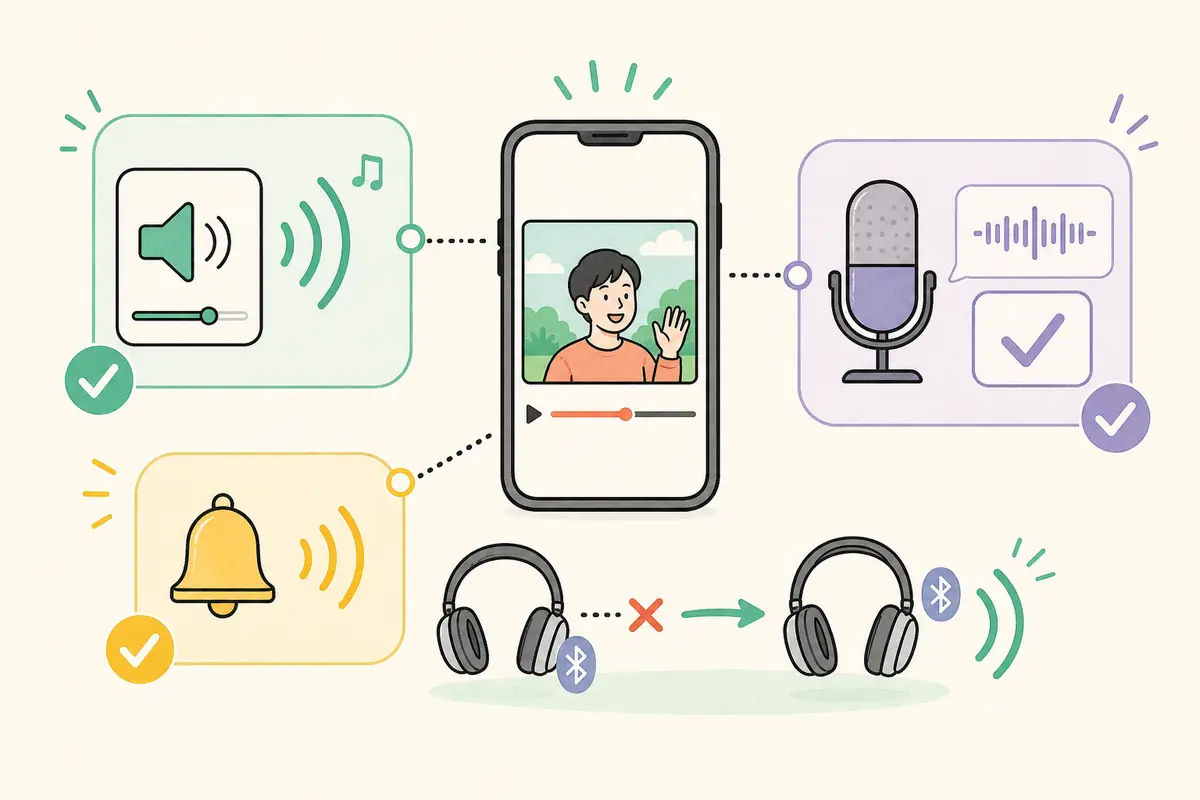
This guide walks through each type of sound separately: media volume and output for playback, microphone permission for recording, and notification sound settings for alerts. Each section includes a comparison test so you can confirm the fix before moving on.
Start here
If Setlog has no sound during video playback, open a video and turn up the media volume, then check silent mode and Bluetooth output. If your own recordings have no audio, check Setlog microphone permission. If notifications appear but make no sound, check Setlog notification sound settings and Do Not Disturb mode. Compare with another app or the built-in camera to narrow down the cause.
Name the symptom
Decide Which Setlog Sound Is Missing Before Changing Settings
Setlog no sound can mean three different things. Playback sound uses media volume and output. Recording audio uses microphone permission. Notification sound uses alert settings and Do Not Disturb. If you change all three at once, you will not know which one fixed the problem and may break a setting that was working.
Start by playing one Setlog video. Then play a different Setlog video. Then play a video from the built-in camera app. Then test a non-Setlog app. If only one video is silent, the video itself may have no audio track. If all apps are silent, the issue is device volume or output. If only Setlog is silent, continue with the sections below.
Playback has no sound
A Setlog video plays but produces no audio. Check media volume, mute state, and Bluetooth output.
Recording captures no audio
Videos you shoot have no voice or ambient sound. Check microphone permission and test with the built-in camera.
Notifications have no sound
Alerts appear on screen but make no noise. Check notification sound, silent mode, and Focus settings.
Only one video is silent
Other videos play sound normally. The issue is likely the video file itself, not your device settings.
Playback sound
Fix Setlog Video Playback With No Sound
Open a Setlog video and press the volume-up button while it plays. Make sure you are adjusting media volume, not ringtone volume — on Android these are separate sliders. Check whether the playback screen shows a speaker or mute icon that indicates audio is turned off.
Bluetooth earphones, car audio, or external speakers can steal audio output even when you are not wearing them. Open the control center on iPhone or quick settings on Android and check the current audio output. Turn Bluetooth off temporarily and play the video through the phone speaker. If sound returns, the problem was output routing, not Setlog.
- Turned up media volume while a video was playing
- Playback screen does not show a mute icon
- Checked Bluetooth output and disconnected unused devices
- Turned Bluetooth off and tested through the phone speaker
- Compared with another Setlog video
- Compared with a video in another app
Recording audio
Fix Setlog Videos That Record With No Audio
If the no-sound problem only affects videos you shoot yourself, check Setlog microphone permission. On iPhone, go to Settings, Privacy and Security, Microphone, and confirm Setlog is allowed. On Android, go to App info, Permissions, Microphone, and allow access. After changing the permission, fully close Setlog and reopen it before testing.
Record a short test video with the built-in camera app. Speak or make a sound near the phone. If the built-in camera also records no audio, the issue may be a covered microphone hole, a connected Bluetooth microphone, or a device-level restriction. Close any calling, recording, or streaming apps that may be holding the microphone before retesting.
- Setlog microphone permission is allowed
- Setlog was fully closed and reopened after the change
- Built-in camera records audio normally
- Microphone holes are not covered by a case or finger
- Calling, recording, and streaming apps are closed
- Tested with the phone microphone, not a Bluetooth mic
Notification sound
Fix Notifications That Appear But Make No Sound
If Setlog notifications show up on screen but make no sound, the alerts themselves are arriving — the issue is only the audio. On iPhone, open Settings, Notifications, Setlog, and confirm Sounds is enabled. Check that the silent switch is not engaged and that Focus or Do Not Disturb is not suppressing alert sounds. On Android, open the notification category for Setlog and confirm it is not set to Silent, then check that notification volume is not at zero.
If notifications do not appear at all — no banner, no badge, no sound — the problem is notification delivery, not sound. That requires checking notification permission, battery optimization, and background data, which are covered in the notification troubleshooting guide.
iPhone
Settings, Notifications, Setlog: confirm Sounds is on. Check silent switch, Focus mode, and Apple Watch mirroring.
Android
Open the notification category for Setlog and confirm it is not Silent. Check notification volume separately from media volume.
Visible but silent
Focus on sound settings, silent mode, and audio output. The notification delivery itself is working.
Not visible at all
This is a notification delivery problem. Check permission, battery, and background data in the notification guide.
Device differences
iPhone and Android Volume Settings That Are Easy to Confuse
On iPhone, the silent switch on the side of the device affects ringtones and alerts, not media playback. A video can play sound even when the phone is in silent mode. Media volume is adjusted while content is playing, and the control center shows the current audio output. Focus modes can silence notifications while leaving playback unaffected.
On Android, ringtone, notification, media, and alarm volumes are often separate sliders. Pressing the volume button once may only change one of them. Open the full volume panel and check media and notification volumes individually. Some manufacturers add their own sound settings that can override app-level preferences.
iPhone notes
Silent switch affects alerts, not media. Check Focus modes, Bluetooth output, and notification Sounds separately.
Android notes
Media and notification volumes are separate sliders. Open the full volume panel to check each one.
Earphones connected
Audio may still route to paired earphones even when you are not wearing them. Switch output back to the phone speaker.
Multiple devices
A smartwatch or tablet may receive alerts instead, keeping the phone silent. Check notification mirroring settings.
Earphone issues
Fix Setlog Sound Problems With Earphones and Bluetooth
Wireless earphones can connect but use different Bluetooth profiles for calls and media. If Setlog video playback is silent through earphones, the media profile may not be active. Disconnect and reconnect the earphones from Bluetooth settings, and check whether the earphone firmware is up to date. If only one side produces sound, the left-right pairing may have drifted — follow the manufacturer's reset procedure.
When you remove earphones, audio output does not always switch back to the phone speaker automatically. Open the control center on iPhone or quick settings on Android and manually select the phone speaker. For wired earphones, check that the plug is fully inserted and that any adapter is making proper contact.
- Checked Bluetooth connection status and audio profile
- Disconnected and reconnected the earphones once
- Earphone firmware is up to date
- Left and right pairing is working correctly
- Manually selected phone speaker after removing earphones
- Checked wired earphone plug and adapter contact
Retest properly
Change One Setting at a Time and Retest With the Same Video
After changing one setting, replay the same Setlog video at the same volume through the same output. If the problem remains, undo that change and try the next one. Changing multiple settings at once makes it impossible to know which one was the cause. For playback, compare with another Setlog video. For recording, compare with the built-in camera. For notifications, use whether the alert appeared on screen as your baseline.
If no sound persists after updating Setlog, updating the OS, and restarting the device, check whether other apps also have no sound. If only Setlog is affected, record the device model, OS version, Setlog version, and the exact screen where sound stops. That evidence is far more useful than saying the whole app is silent.
- Changed only one setting before retesting
- Used the same video and output for comparison
- Compared with another Setlog video
- Compared with the built-in camera recording
- Recorded device model, OS version, and Setlog version
- Can describe which screen or action produces no sound
FAQ
Common questions
Why is there no sound when I play Setlog videos?
Open a Setlog video and turn up the media volume. Then check whether silent mode is on, whether Bluetooth earphones or speakers are connected, and whether the playback screen shows a mute icon. Compare with another video in Setlog and in a different app to narrow down whether the problem is the video file, Setlog, or the device.
Why do my Setlog recordings have no audio?
Check Setlog microphone permission in device settings, then fully close and reopen Setlog. Test with the built-in camera app — if that also records no audio, the problem is not Setlog-specific. Also check whether other apps are using the microphone, whether a Bluetooth mic is connected, and whether the phone microphone is physically blocked.
Why do Setlog notifications appear but make no sound?
The notification is being delivered, so the issue is sound output. Check Setlog notification Sounds on iPhone, or the notification category sound setting on Android. Confirm silent mode and Focus or Do Not Disturb are not suppressing alert sounds.
Why does turning off Bluetooth fix the Setlog sound?
Audio was being routed to a paired Bluetooth device — earphones, car, or speaker — even though you were not using it. After disconnecting, manually select the phone speaker as the output and replay the video.
Only one Setlog video has no sound. Is this a device setting?
If other Setlog videos play sound normally, the problem is likely the video file itself. The original recording may not have captured audio. Compare multiple videos before changing device settings.
Is Setlog no sound the same problem as notifications not arriving?
No. If notifications appear on screen but make no sound, the delivery is working and only the sound setting needs attention. If notifications do not appear at all — no banner, badge, or alert — that is a notification delivery issue covered by the notification troubleshooting guide.
I removed my earphones but the phone speaker still has no sound. Why?
Audio output does not always switch back automatically. Open the control center on iPhone or quick settings on Android, check the current output, and manually select the phone speaker before replaying the video.
Where to go next
Notifications not showing
If alerts do not appear at all — not just sound — check notification permission and battery settings.
Open guideCamera not working
Fix a black preview, frozen capture, or missing save when the camera itself is the problem.
Open guideSave a Setlog video
Export a finished video to your device gallery after confirming playback and audio are working.
Open guide