
Change display name
How to Change Your Setlog Name: Display Name, Profile, and Group Name
Renaming your profile starts with knowing which name you want to change. A display name on your profile, a group name for a Log you manage, and the name you entered during registration can be three different things on three different screens. This guide covers how to rename your display name after signup: where the edit screen is, how to save, where the new name appears, and what to check when the rename does not stick.
If you are still on the registration screen deciding what to enter in a first-time field, that is a different situation. This page is for accounts that already exist and just need the visible name updated.
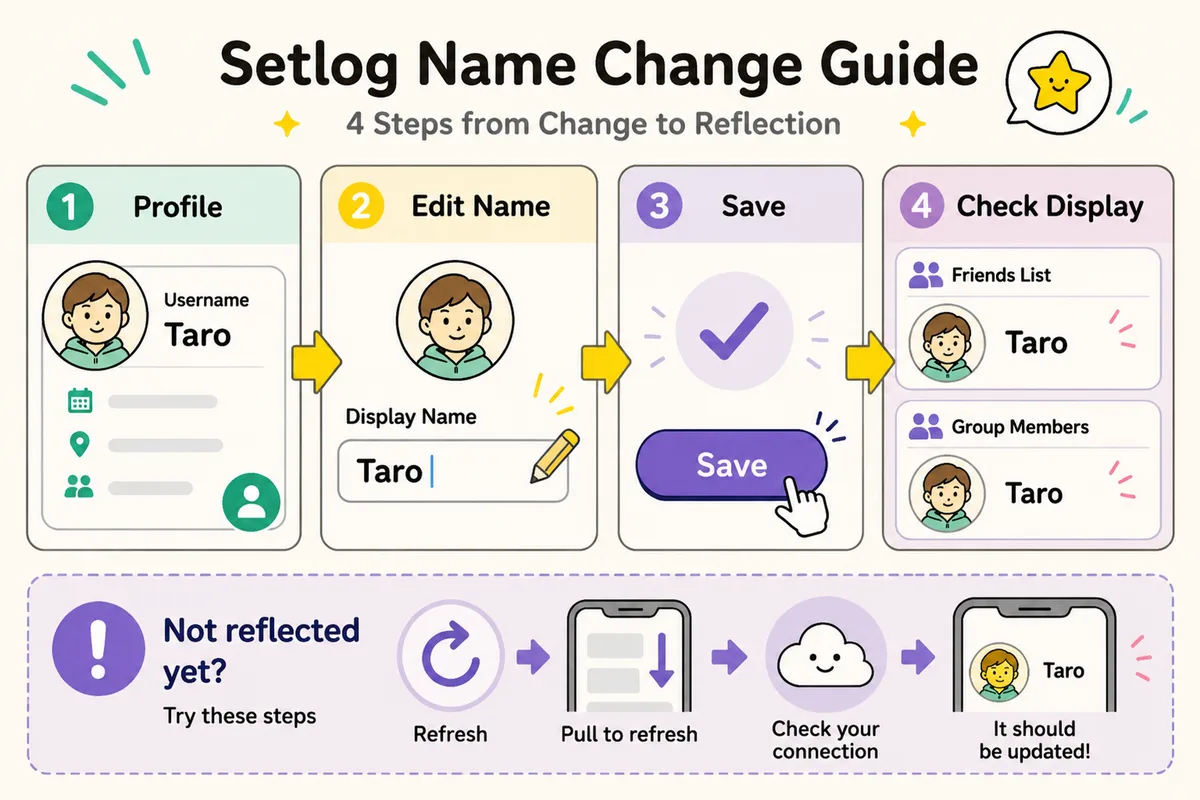
Start here
To rename your display name, open your profile or account screen from your icon or settings, look for an edit button or a display name field, enter the new name, and save. After the rename, check your own profile, what friends see, and what appears inside groups you belong to — the new display name may not appear everywhere at the same moment.
Which name
Know Which Name You Are Trying to Change
In Setlog, the name you see on your own profile card, the name your friends see in their list, the name on a Log or group, and the name you typed during registration can all refer to different fields. Before you start editing, ask whether the name you want to change is your personal display name, a group name, or something from the signup screen.
This page focuses on changing your personal display name after you have already created an account. If you are looking at a group name and want to rename the Log itself, that is covered in the group name change guide. If you are still on the registration screen deciding what to type, check the registration name guide instead.
Display name
Your profile name — the one friends see in their lists and groups. This is what you can rename from your account screen after signup.
Group name
The name of a Log you created or manage. Changing this is separate from changing your personal display name.
Registration name
What you entered during signup. Some fields set during registration may not be editable later from the same screen.
Login account name
The identifier tied to your sign-in method. This is usually managed through your Apple, Google, or other login provider, not inside Setlog.
Before changing
What to Decide Before You Change Your Display Name
Before typing a new name, think about who can see it. A display name in Setlog may be visible to friends, group participants, and potentially others in shared spaces. Changing it to something your friends will not recognize can create confusion in active Logs. A short, recognizable name usually works better than a long or formal one.
Also consider whether you need your real name. If the visibility of your name is unclear, avoid including your full legal name, school name, workplace, or other personal identifiers. A nickname or first name is often enough for the people you record with to know who you are.
Who sees this name
Check whether the name is visible only to you, to friends, or to anyone in groups you have joined.
Use a recognizable name
Pick something your friends will immediately connect to you — a short first name or nickname is usually better than a long handle.
Avoid personal identifiers
Do not include your full name, school, workplace, phone number, or address in a display name visible to others.
Where to edit
Where to Find the Name Edit Screen in Setlog
Open Setlog and look for your profile icon, account screen, or settings. This is usually accessible by tapping your icon or avatar from the home screen. Once in your account area, look for an edit button, a pencil icon, or a field labeled display name, name, or profile. The exact label depends on your app version and language setting.
The edit screen for changing a name after signup is not the same as the registration screen. If the field you find does not let you type, or if no save button appears, you may be looking at a read-only view, a different name type, or the app version may not support editing that field. Switch from looking for an exact label to following a pattern: your icon, account, edit button, editable text field, save button.
- Open your profile or account screen from your icon
- Look for an edit button, pencil icon, or editable name field
- Check whether the field accepts text input
- Look for a save or confirm button after editing
- If no edit option exists, check whether the app version supports it
- Do not confuse the registration screen with the post-signup edit screen
After saving
Where to Check After Saving the Renamed Display Name
Saving the new name is not the last step. The rename may appear on your own profile immediately, but your friends' screens, group participant lists, and older cached views may still show the previous name for a while. Check multiple places to confirm the display name change took effect where it matters.
Start with your own profile screen to confirm the new name saved correctly. Then check how it appears in a friend list or group participant view if someone can verify for you. Past Logs, old notifications, and cached screens may continue to show the old name even after the current display name has been updated. That is a display lag issue, not a failed change.
Your own profile
Open your profile card or account screen and confirm the new name is showing.
Friend list view
Ask a friend to check how your name appears in their friend list or in a shared group.
Group participant list
Open a Log you participate in and check your name in the participant or member list.
Past content
Older Logs and notifications may still show the previous name due to caching. This is separate from the current display name.
Cannot save
What to Check When You Cannot Save the New Name
If the save button stays grey or does not respond, check the input first. The name may be too long, use characters the field does not accept, or be only spaces. Try a short, simple name as a test. If the save button responds but the old name returns after saving, check your internet connection, sign-in state, and whether the app is updated.
If the name saves but does not appear anywhere after waiting and refreshing, close Setlog fully and reopen it. Toggle between Wi-Fi and mobile data. Check the app store for a pending Setlog update. If none of this helps, the field you edited may not be the display name your friends actually see, or the app version may have a known limitation.
- The name is not too long or using unsupported characters
- The field is not empty or only spaces
- Internet connection is stable when saving
- You are signed in and the session has not expired
- Setlog is updated to the latest version
- The app was fully closed and reopened after saving
Group name
Changing a Group Name Is Separate from Your Display Name
If the name you want to change is the name of a Log or group, the edit screen is inside that specific Log, not in your personal account settings. You usually need to be the person who created the Log or have admin permissions to change its name. The change will be visible to all participants in that Log.
Do not confuse a group name with your personal display name. Editing your profile name will not change the name of any Log you created, and editing a Log name will not change how your personal name appears to friends.
Open the Log
Go into the specific Log whose name you want to change, then look for Log info, settings, or an edit option.
Check permissions
You need to be the Log creator or have admin access. If the edit option is missing, you may not have permission.
Save and verify
After renaming, confirm the new name appears for you and ask another participant if they see the updated name.
FAQ
Common questions
Can I rename my display name after signing up?
Yes. Open your profile or account screen from your icon, look for an edit button or a field labeled display name or name, enter the new name, and save. The rename option depends on the app version, so if no edit field appears, check for a pending update. Note that changing your display name is not the same as renaming a group.
Where do I find the name change screen in Setlog?
Tap your profile icon or avatar from the home screen to reach your account area. Look for an edit button, pencil icon, or a field labeled display name or name. The exact label and location to change your Setlog name varies by app version and language — if you do not see an edit option, check for a pending app update.
Why can I not save my new display name?
Check whether the name is too long, uses unsupported characters, or is empty. Confirm your internet connection is stable, you are signed in, and the app is updated. If the save button stays grey, try a short simple name as a test. If the rename still will not save, the field you are editing may not be the display name — check whether you are on the right edit screen.
Will my friends see the renamed display name immediately?
Your own profile may update right away, but your friends' screens and group participant lists may take time to show the new display name. Ask someone to check their view, and keep in mind that older Logs and notifications may continue to show the previous name. The rename is saved on your account — the delay is in how other screens refresh, not in whether the change was applied.
Is renaming my display name the same as renaming a group?
No. Your personal display name is edited from your account or profile screen. A group name is edited inside the specific Log and usually requires you to be the Log creator or have admin permissions. Renaming your profile does not rename any groups, and renaming a group does not change your display name.
Does renaming my display name affect my login or account?
Renaming your display name does not change how you sign in. Your login method — Apple, Google, or other provider — manages your sign-in credentials separately from the display name shown inside the app. The rename only affects what other people see, not your account identity.
What should I avoid when picking a new profile name?
Avoid your full legal name, school name, workplace, address, phone number, or other personal identifiers if the name is visible to people beyond close friends. A short first name or recognizable nickname is a safer profile name choice than anything that could identify you offline.