
Turn off notifications
How to Turn Off Setlog Notifications Without Losing Important Updates
Turning off notifications does not have to mean complete silence. You might need silent mode during class, mute only the sound while keeping banner alerts, or a temporary pause during sleep or focus time. Each goal uses a different setting, and mixing them up is how people accidentally leave things muted longer than intended or silence alerts they wanted to keep.
This guide covers iPhone and Android steps for each approach: full stop, sound only, lock screen hide, and temporary pause with Focus modes. It also covers how to turn notifications back on and what to check if notifications were already enabled but stopped arriving.
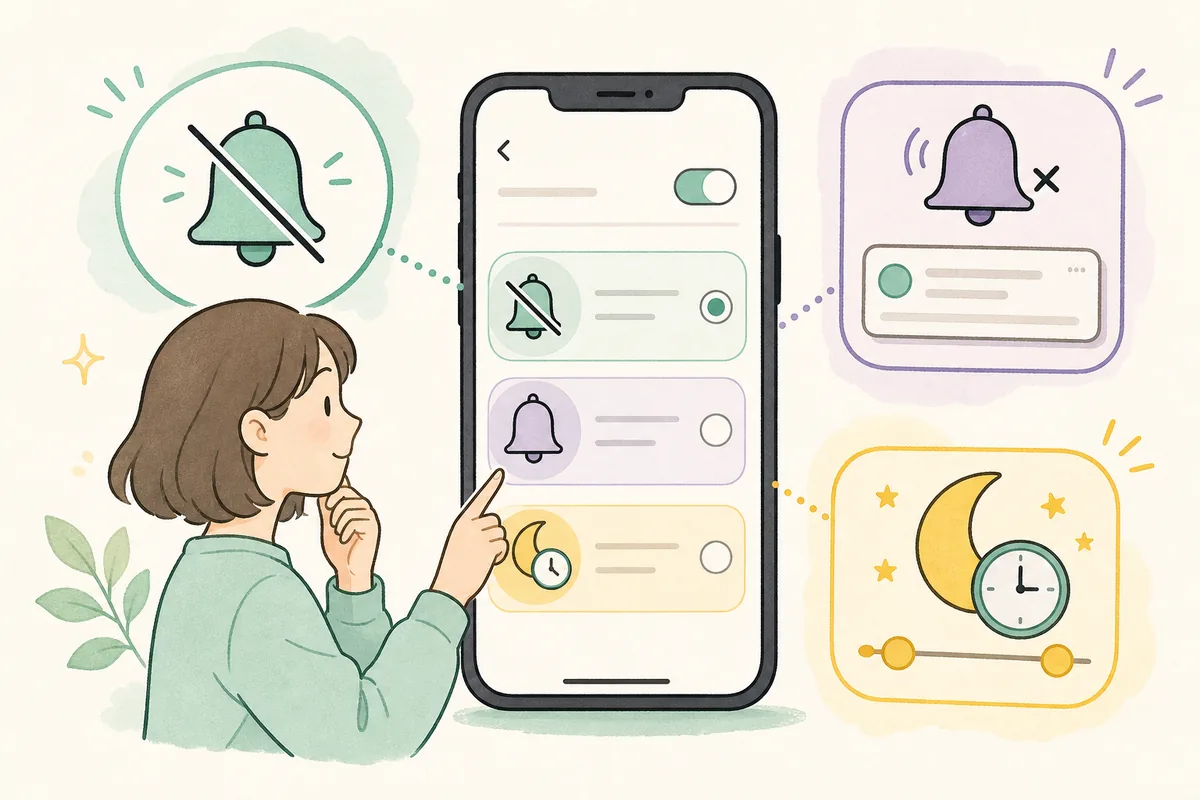
Start here
On iPhone, open Settings, Notifications, Setlog, and turn off Allow Notifications to stop everything. To mute only sound while keeping alerts visible, keep notifications on but disable Sounds. On Android, open Settings, Apps, Setlog, Notifications, and turn off All Setlog notifications or switch individual categories to Silent. For a temporary pause, use Focus or Do Not Disturb instead of changing per-app settings — this silences alerts during the scheduled time and restores them automatically afterward.
Choose your goal
Pick the Right Way to Turn Off Setlog Notifications
Before opening settings, decide what you actually want. Turning everything off means no banners, no lock screen alerts, no sounds, and no badges. Muting only sound keeps the visual alerts while silencing the noise. A temporary pause during class, work, or sleep is better handled with Focus or Do Not Disturb mode because the settings revert automatically. Each path affects a different set of controls.
None of these notification changes delete your posts, your friends' content, or your account. Turning off notifications only changes how your phone alerts you. The content is still there when you open the app. Remember where you changed the setting so you can find it again when you want to turn notifications back on.
Full silence
Stop all notifications: banners, lock screen, sounds, and badges. The most thorough mute — nothing appears and nothing makes noise.
Mute sound only
Keep visual alerts but silence notification sounds and vibration. Alerts still appear on screen, just silently.
Temporary silent mode
Use Focus or Do Not Disturb for specific times like class, work, or sleep. The mute ends automatically when the scheduled time passes.
Silence specific types
On Android, set individual notification categories to Silent to mute only certain kinds of alerts while keeping others audible.
iPhone steps
How to Silence Setlog Notifications on iPhone
Open Settings, Notifications, and tap Setlog. To stop everything, turn off Allow Notifications at the top — this is a full mute. To keep alerts but remove sound, leave Allow Notifications on and turn off Sounds — this gives you silent visual alerts. To hide content from the lock screen, uncheck Lock Screen under Alerts while leaving Banners on.
For a temporary silent mode, use Focus instead of changing per-app notification settings. Open Settings, Focus, and choose an existing mode like Do Not Disturb or Sleep, or create a custom one for class or work. Notifications will be silenced while the Focus mode is active and return automatically when it ends — no need to unmute manually.
- Settings, Notifications, Setlog: turn off Allow Notifications for full stop
- Keep Allow Notifications on, turn off Sounds for mute only
- Uncheck Lock Screen to hide alerts when the phone is locked
- Use Focus or Do Not Disturb for temporary silence instead
- Remember where these settings are to turn them back on later
- Turning off notifications does not delete any content
Android steps
How to Turn Off Setlog Notifications on Android
Open Settings, Apps, tap Setlog, then Notifications. Turn off All Setlog notifications to stop everything. On many Android devices, notification categories appear below — you can turn off specific types like activity updates or messages while leaving others on. To mute sound only, tap a category and set it to Silent instead of Default.
Android also has Do Not Disturb mode for temporary pauses. Open Settings, Sound and vibration, Do Not Disturb, and configure a schedule or turn it on manually. This silences Setlog alongside other apps without changing per-app settings, making it easy to resume normal notifications when you turn Do Not Disturb off.
- Settings, Apps, Setlog, Notifications: turn off All notifications for full stop
- Set individual categories to Silent for sound-only mute
- Turn off specific categories if only some alerts are unwanted
- Use Do Not Disturb for temporary silence with a schedule
- Notification category names vary by phone model and Android version
- Check notification settings again after a system update
Lock screen privacy
Hide Setlog Notification Content From the Lock Screen
Sometimes the problem is not the notification itself but that its content is visible to anyone who picks up the phone. On iPhone, open Settings, Notifications, Setlog, and under Alerts uncheck Lock Screen. The notification will still appear as a banner and in Notification Center, but it will not show on the locked screen.
On Android, open Settings, Apps, Setlog, Notifications, and look for a lock screen or sensitive content setting. Depending on the device, you may be able to choose between showing all content, hiding sensitive content, or not showing notifications on the lock screen at all.
iPhone
Settings, Notifications, Setlog, uncheck Lock Screen under Alerts. Banners and Notification Center stay active.
Android
Look for lock screen or sensitive content options under notification categories. Options vary by manufacturer.
Hide content only
Some devices let you show that a notification exists but hide the message text until unlocked.
Hide everything
Stop Setlog from appearing on the lock screen entirely while keeping in-app alerts visible.
Turn back on
How to Turn Setlog Notifications Back On Later
If you turned notifications off completely, go back to the same settings screen and re-enable them. On iPhone, Settings, Notifications, Setlog, turn Allow Notifications back on and confirm Sounds, Badges, and alert styles are configured as you want. On Android, Settings, Apps, Setlog, Notifications, turn All Setlog notifications back on and check individual categories.
If notifications were on but still do not arrive, the problem is not the toggle. Check notification permission, battery optimization, background data restrictions, and Focus or Do Not Disturb mode. Those are notification delivery issues, not on-off settings, and are covered in the notification troubleshooting guide.
- Return to Settings, Notifications, Setlog and re-enable
- Confirm Sounds is on if you want audible alerts
- Check Badges is on if you want app icon counters
- If Focus mode was used, confirm it is no longer active
- If Do Not Disturb was on, turn it off or adjust the schedule
- If notifications still do not arrive, see the notification troubleshooting guide
Delivery issues
When Notifications Are On But Still Not Arriving
If Setlog notifications are enabled in settings but alerts still do not appear, the issue is delivery, not the on-off toggle. Battery optimization can put Setlog to sleep in the background. Background data restrictions can prevent the app from checking for updates. Focus or Do Not Disturb modes can be active without you realizing it.
These delivery problems are covered in detail in the notification troubleshooting guide. Do not toggle the notification setting on and off repeatedly — that will not fix a delivery problem and may reset other preferences. Check one delivery factor at a time instead.
Battery optimization
Android may restrict Setlog background activity. Check Settings, Apps, Setlog, Battery and choose Unrestricted.
Background data
Data Saver or Low Data Mode can block Setlog from receiving updates in the background.
Focus mode active
An active Focus or Do Not Disturb schedule may be silencing notifications without you noticing.
Notification permission
If Setlog was reinstalled or updated, notification permission may need to be re-granted.
FAQ
Common questions
How do I turn off Setlog notifications completely?
On iPhone, open Settings, Notifications, Setlog, and turn off Allow Notifications. On Android, open Settings, Apps, Setlog, Notifications, and turn off All Setlog notifications. This stops banners, lock screen alerts, sounds, and badges.
Can I mute notification sounds but keep the alerts visible?
Yes — this is the silent-but-visible setup. On iPhone, keep Allow Notifications on but turn off Sounds. On Android, open the notification category and switch it from Default to Silent. Alerts still appear on screen as banners and badges, just with no sound or vibration. This is different from a full mute where nothing appears at all.
How do I temporarily mute notifications during class or sleep?
Use Focus mode on iPhone or Do Not Disturb on Android. This silences alerts during the scheduled time and restores them automatically when the mode ends — no need to remember to unmute later. A temporary mute is safer than turning off notification settings one by one, which are easy to forget to re-enable.
Will turning off Setlog notifications delete my posts or content?
No. Notification settings only control how your phone alerts you. Your posts, your friends' content, and your account are not affected. You can still open the app and see everything normally.
How do I turn Setlog notifications back on?
Go back to the same settings screen where you turned them off. On iPhone, Settings, Notifications, Setlog, turn Allow Notifications on. On Android, Settings, Apps, Setlog, Notifications, turn All Setlog notifications on. Check individual alert settings after re-enabling.
Why are Setlog notifications not arriving even though they are turned on?
The on-off toggle being set to on only means the setting is enabled — it does not guarantee delivery. Battery optimization, background data restrictions, active Focus or Do Not Disturb modes, and notification permission can all prevent alerts from arriving. Check those in the notification troubleshooting guide.
Can I hide Setlog notifications from the lock screen but keep them elsewhere?
Yes. On iPhone, Settings, Notifications, Setlog, uncheck Lock Screen under Alerts. On Android, look for a lock screen or sensitive content option under notification settings. Notifications will still appear as banners and in Notification Center.
Where to go next
Notifications not showing
If Setlog alerts are not arriving at all despite being enabled, troubleshoot delivery issues step by step.
Open guideBeginner guide
Return to the full Setlog tutorial covering capture, friends, notifications, and first-use settings.
Open guideNo sound fix
Separate notification sound issues from playback and recording audio problems.
Open guide