
Add friends guide
How to Add Friends on Setlog: Invite Codes and Group Joins
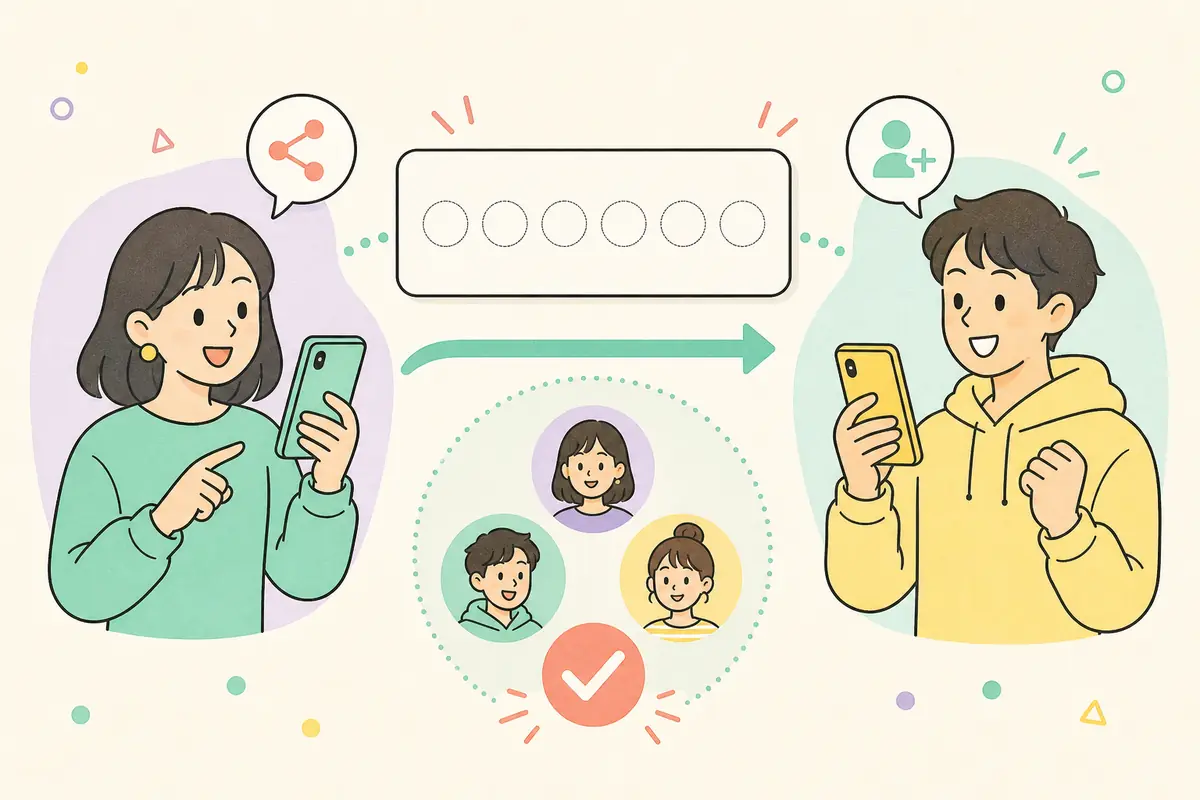
Adding friends on Setlog works differently from following someone on a public platform. Instead of searching for a profile, you join the same Log together. One person creates a Log and shares a join code — essentially a friend code that links two people into one shared space. The other person enters that code, confirms the group name, and becomes part of the shared space. Once both people are in the same Log, they appear in each other's friends list within that group.
This guide separates the two roles: the person who invites and the person who joins. It also covers what to do when a code does not work, what to check after joining, how to stay safe with codes from people you do not know, and where to look when you do not have someone to add yet.
Start here
To add friends on Setlog, create a Log from the plus button on the home screen, then share the join code that appears — this is your friend code for that specific group. The person you want to add opens the same plus menu, selects Join a Log, enters the code, and confirms the group name before joining. Both people then appear in the same Log and can share moments there. There is no friend request system or profile search — adding friends always goes through a shared Log.
How it works
Adding Friends on Setlog Means Joining the Same Log
When you look for a way to add friends on Setlog, the answer is not a profile search or a follow button. It is about three screens: creating a Log, sharing a join code, and entering that code to enter the same shared space. A Log is the container where each person adds short daily moments that the other person can see.
The join code is a short string of letters and numbers that identifies one specific Log. It is not a password, but it should still be shared with care. The person who receives it sees the group name before joining, so they can confirm they are entering the right place. If a code arrives from someone you do not know, or a public post gives no explanation of what the Log is about, pause and check before entering it.
The person who invites
Creates a Log, finds the friend code, and shares it directly with the person they want to add — there is no friend request button to press.
The person who joins
Opens the plus menu, selects Join a Log, enters the shared code, checks the group name, and confirms to enter the same space.
The join code
A short alphanumeric string that points to one Log. It is not a password, but avoid posting it publicly without context.
After joining
Open the Log, check the participant list and the correct posting destination, then send a first short moment to confirm everything works.
Inviting someone
How to Invite a Friend: Create a Log and Share the Friend Code
To invite a friend, start from the home screen. Tap the plus button, usually in the top-right corner, and choose Create a Log. Give the Log a name that your friend will recognize, and set a participant limit if the option is available. After creating it, look near a hash or share icon for the join code — a short sequence of letters and numbers that acts as an invite code for that specific group.
Before sharing the code, double-check the Log name and who should join. Sending the code directly to a friend through a message or chat is easier to manage than posting it on a public social feed. If you do want to invite people you do not know personally, describe the Log theme, language, expected activity, and who it is for alongside the code.
1. Open the plus menu
On the Setlog home screen, tap the plus button to see the options for creating or joining a Log.
2. Set up the Log
Enter a name the invited person will recognize. Set a participant limit if the screen offers one.
3. Find the join code
After the Log is created, the code appears near a hash icon or in the Log info screen.
4. Share it safely
Send the code directly to the person you want to add. If sharing publicly, include what the Log is about.
Joining a Log
How to Join: Enter a Code and Confirm the Group Name
If someone sent you a Setlog join code, open the app and tap the plus button on the home screen. Look for Join a Log, Join, or a similar option — the exact label may differ slightly between iPhone and Android. Enter the code exactly as it appears, watching for similar-looking characters like zero and the letter O, or one and the letter I.
When the code is correct, the group name appears. This is your chance to confirm you are entering the right Log. If the name does not match what you expected, stop and ask the person who invited you to confirm the code. Once you confirm, the Log appears on your home screen. Open it to check the participant list and the posting destination before sending your first moment.
1. Open the plus menu
Tap the plus button on the home screen and select Join a Log or the equivalent option.
2. Enter the code
Type the code exactly as shared. Watch for 0 vs O, 1 vs I, and any extra spaces at the beginning or end.
3. Read the group name
Before confirming, check that the displayed group name matches what you were invited to.
4. Confirm and check
After joining, go back to the home screen and open the Log to confirm you are in the right place.
Code not working
What to Do When a Join Code Does Not Work
Start by checking the code character by character. The number zero and the letter O look similar in some fonts. The same goes for the number one, the letter I, and the lowercase L. If you can copy and paste the code, try that and compare it with what you typed manually. Remove any spaces before or after the code.
If the code still does not work, ask the person who shared it to confirm the Log still exists, the participant limit has not been reached, and the code is still valid. Switch between Wi-Fi and mobile data, make sure Setlog is updated to the latest version, and confirm you are signed in. Try the code once more after these checks. If a code from a public post has stopped working, the listing can be reported.
- The code was entered exactly as shown, with no missing characters
- Zero and O, one and I were not mixed up
- No spaces at the beginning or end of the code
- The group name shown matches the invitation
- The Log owner confirmed the code is still active and not full
- Setlog is updated, internet is working, and you are signed in
After joining
What to Check After Joining a Log
Once you join, open the Log from the home screen. Check the group name, the participant list, and whether past posts are visible. If nothing appears right away, go back to the home screen, pull to refresh, or close and reopen Setlog. A short delay in loading past content is not the same as a failed join.
When you send your first moment, make sure you select the correct Log as the destination. If you are in multiple Logs, it is easy to accidentally post to the wrong one. If participant profile pictures do not load immediately or posts appear slowly, the issue is usually about connection or display refresh, not about the join having failed.
- The joined Log appears on the home screen
- The group name matches the invitation
- Participants and past posts are visible or loading
- The correct Log is selected when sending a moment
- Closing and reopening the app was tried if content is missing
- No personal information was sent to unknown participants
Safety check
What to Do When a Join Code Comes from Someone You Do Not Know
If a join code arrives through social media, a forum, or a message from someone you do not recognize, do not enter it right away. A code lets you into a shared space where people can see what you post. Ask yourself: is the Log theme explained? Is the language and target audience clear? If the only description is 'anyone can join' with no further detail, it is safer to pass.
Before joining, look for a clear description of the Log topic, expected age range, language, and activity. For younger users, check with a trusted adult before entering a code from an unknown source. Never share your real name, school, address, phone number, or personal photos in response to a join request. A well-run group will never demand that information as a condition of entry.
Read the description first
A clear Log should state its theme, language, target audience, and rules before you enter a code.
Check who sent it
Confirm the code came from someone you know or a trusted source with a verifiable explanation.
Do not share personal details
A Log that asks for your real name, school, contact information, or photos before joining should be avoided.
When in doubt, skip it
If the description is vague, the sender is unknown, or something feels off, do not use the code.
Finding people
What to Do When You Do Not Have Someone to Add Yet
A join code works when you already have a specific person or group in mind. If you do not have someone to invite yet, the answer is not to try random codes from public posts. Instead, look for groups that describe their theme, language, target age range, and activity style clearly. A good group listing tells you why you would want to join before you enter a code.
SetlogHub maintains a reviewed public group directory organized by interest: daily logs, study groups, photo sharing, fandoms, language exchange, and more. Each listing explains what the group is about so you can decide before sharing a code. If nothing in the public list fits, you can submit your own preferences — theme, language, posting pace, group size — and get matched when a suitable group opens.
Read the description first
Choose a group because the theme and activity make sense, not just because a code is available.
Start small
A small group with a clear topic is easier to get comfortable in than a large, undefined one.
Protect your information
Avoid groups that ask for your real name, school, address, or phone number before you can participate.
Leave if it does not fit
If a group feels unsafe, misleading, or different from its description, stop posting and check how to leave or report it.
FAQ
Common questions
How do I add friends on Setlog?
Create a Log from the plus button on the home screen, then share the join code — also called a friend code or invite code — with the person you want to add. They open the same plus menu, select Join a Log, enter the code, and confirm the group name. Both of you then appear in the same Log. There is no friend request button or profile search — adding friends always works through joining a shared Log together.
Where do I find the join code to share with a friend?
After creating a Log, open the Log info screen. The join code appears near a hash icon as a short string of letters and numbers. Copy the code and share it directly — there is no in-app send or friend request feature. The exact location of the code may vary between iPhone, Android, and app versions.
Where do I enter a join code?
Open the plus button on the home screen and select Join a Log or Join. Enter the code in the field that appears, then confirm the group name before completing the join.
Why is the Setlog join code not working?
Check for similar-looking characters (0 vs O, 1 vs I), extra spaces, and whether the Log still exists and has not reached its participant limit. Confirm your internet connection, update Setlog, and verify you are signed in. If it still fails, ask the Log owner for a new code.
Is it safe to share a Setlog join code publicly?
A public code can be used by anyone who sees it. If you post it publicly, include the Log theme, language, target audience, and rules so people can decide whether it fits before joining. For private groups, share the code directly with the people you want to add.
What if I do not have anyone to add on Setlog yet?
Browse the reviewed public group directory on SetlogHub, organized by interest, language, and activity style. Read the descriptions to find a group that fits rather than entering random codes. If nothing matches, submit your preferences to get notified when a suitable group opens. There is no Setlog friend suggestion feature or contact import — adding friends always starts with a shared Log.
What should I do if a stranger sends me a join code?
Do not enter it immediately. Check whether the sender explained the Log theme, language, and purpose. If the only description is 'anyone welcome' with no detail, skip it. Younger users should check with a trusted adult before entering codes from unknown sources.
I joined but cannot see my friend's posts. Why?
Past posts may take a moment to load after joining. Go back to the home screen, pull to refresh, or close and reopen Setlog. Confirm the group name matches the invitation. If posts still do not appear, ask the Log owner to verify you are listed as a participant.